

Overview
The Transactional Screens are central to front-end operations and device configuration within the Plum Tunes application. These screens play a vital role in deploying and managing the in-store entertainment experience for restaurants.
Transactional screens provide a clear overview of configured playlists, advertisement groups, device assignments, and playback schedules. They also help users monitor the playback sequence of songs and advertisements on each device, ensuring smooth and accurate operation across restaurant locations.
The Transactional Screens include the following modules:
- Dashboard
- Device
Dashboard
When users access the Plum Tunes application and select a store, they are redirected to the Dashboard module.
This module allows users to:
- View the playback sequence configured for the selected device
- Preview tracks and advertisement media directly from the dashboard
- Identify advertisement media easily through highlighted indicators
Advertisement media items are highlighted in yellow for quick identification, as shown in Figure 2.7.
This functionality helps users verify scheduled playback and confirm that playlists and advertisements are configured correctly for restaurant devices.
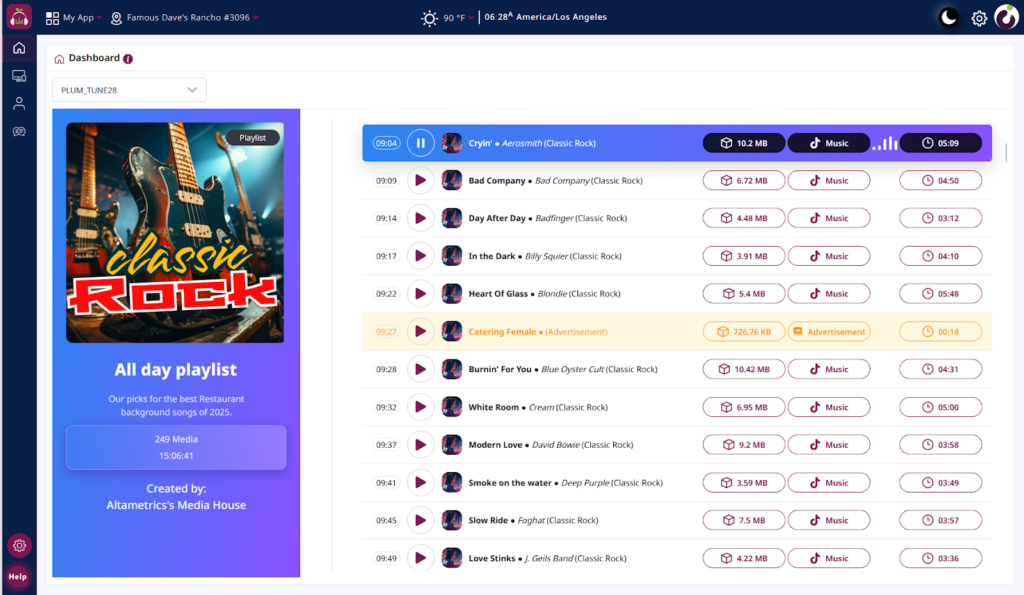
Figure 2.7: Dashboard Module.
Device Module
The “Device module” displays all devices currently added to the restaurant, allowing users to quickly see which devices are online or offline and view key details such as device name, last sync time, and device ID. This helps keep track of connected devices and their status.
Users can also add new devices by clicking the “Add” button and entering the authentication code shown on the monitor or TV, similar to the process in the Plum POS app. This provides a secure and straightforward way to connect and activate new devices.
A Shuffle mode option is available at the device level. When enabled, all songs in the assigned playlist will play in random order once assigned to the device. This process is illustrated in Figure 2.8.
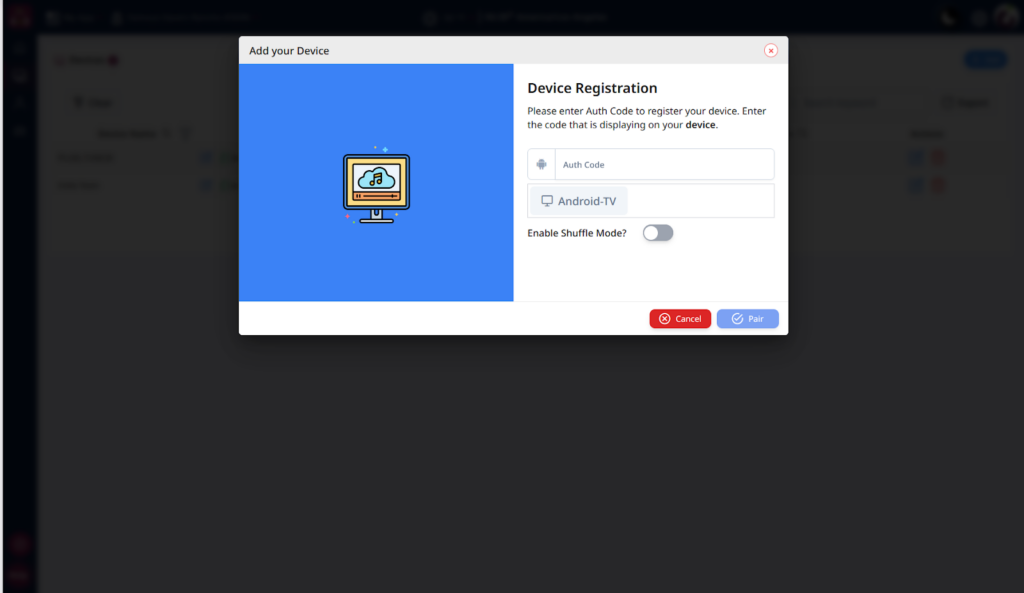
Figure 2.8: Add a New Device
After adding a device, users can assign one or more configured playlists and advertisement groups and schedule them to play on specific days and times. Multiple playlists and ad groups can be assigned to the same device at different times, providing flexible content scheduling throughout the day. This setup is shown in Figures 2.9 and 3.0.
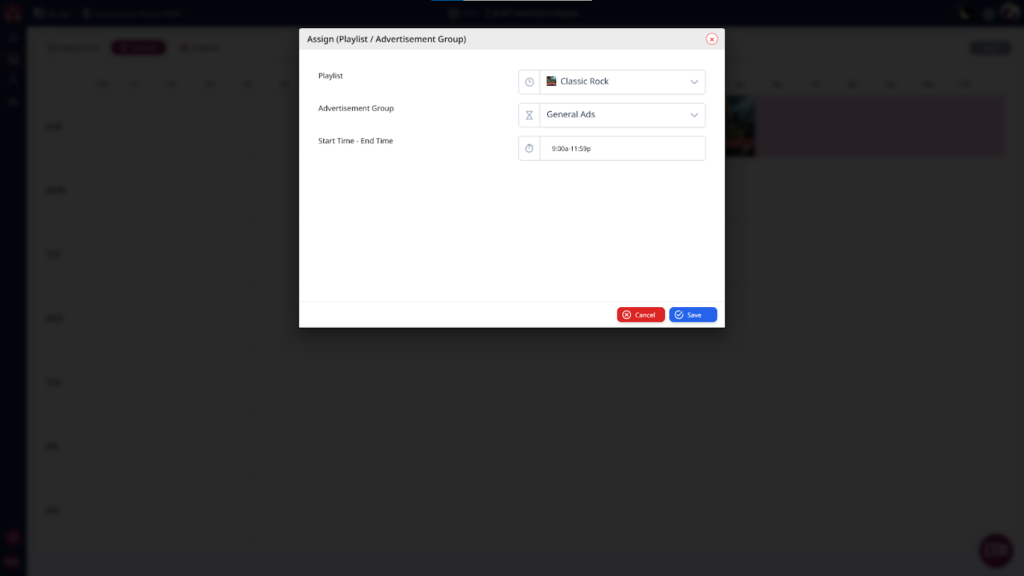
Figure 2.9: Adding a Playlist and adv group the device
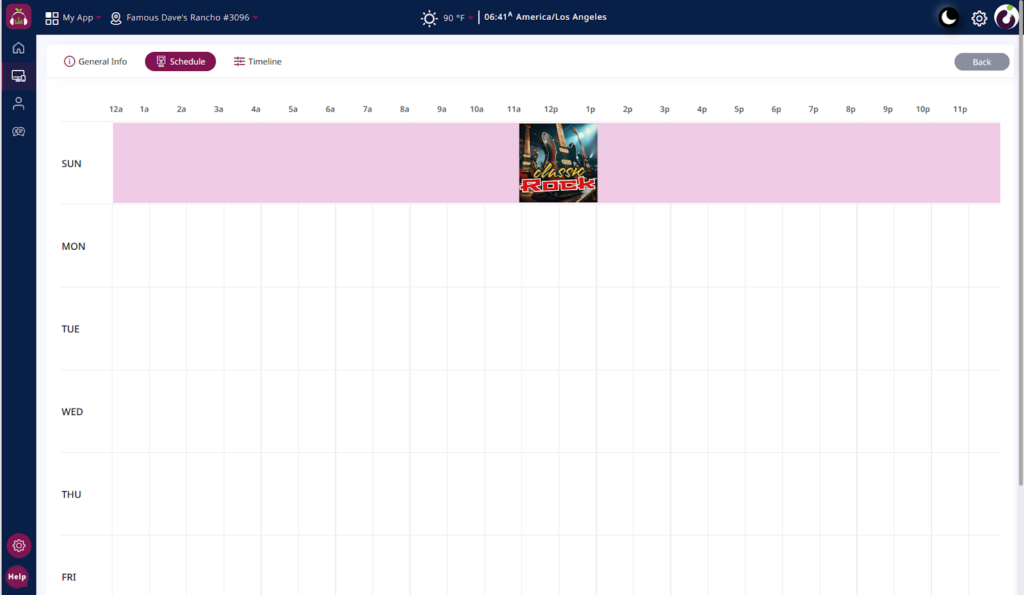
Figure 3.0: Added playlist and adv group added.
The final tab, Timeline, displays the playback sequence of the assigned playlists and advertisement groups. Users can also preview tracks and ad media directly from the dashboard, with ad media highlighted in yellow for easy identification as shown in Figure 3.1.
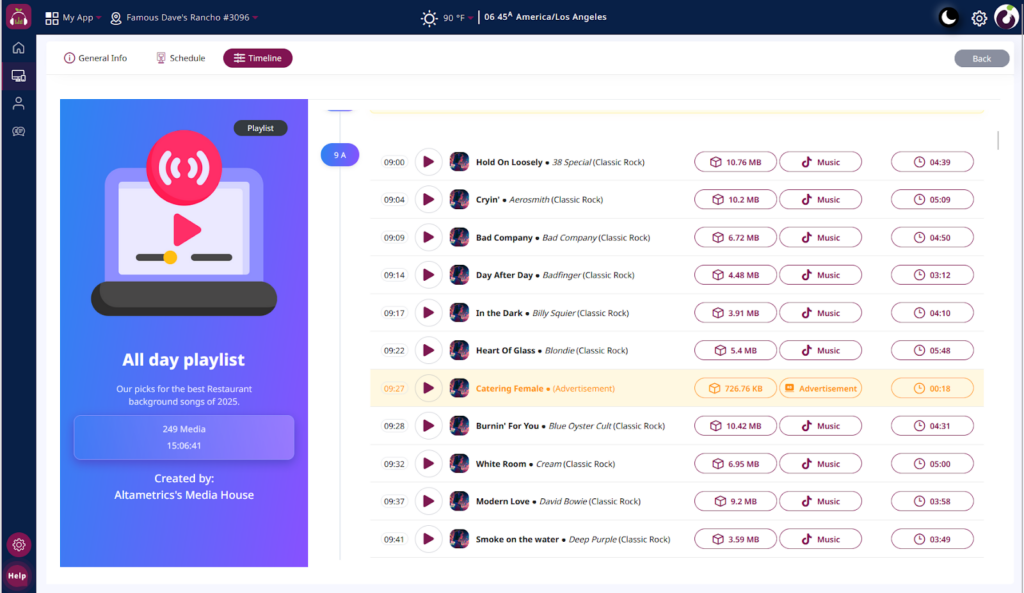
Figure 3.1: Device> Timeline Module