

Overview
The Advertisement Group module contains all advertisement groups created within the Plum Tunes application. Unlike the Tracks and Playlist modules, users can create, manage, and deactivate advertisement groups directly through the user interface.
Each advertisement group can contain one or multiple advertisement media files and can be assigned to restaurant devices based on operational requirements.
The summary screen displays the total number of media items assigned to each advertisement group, helping users quickly understand advertisement distribution and configuration.
Advertisement Group Details
On the Advertisement Group Details screen, users can view the following information:
- Title – Displays the name of the advertisement group.
- Ad Count – Displays the total number of advertisement media files assigned to the group.
- Is Active Flag – Allows users to activate or deactivate the advertisement group globally for all stores.
This information helps users understand the current configuration and status of advertisement groups, as shown in Figure 2.1.
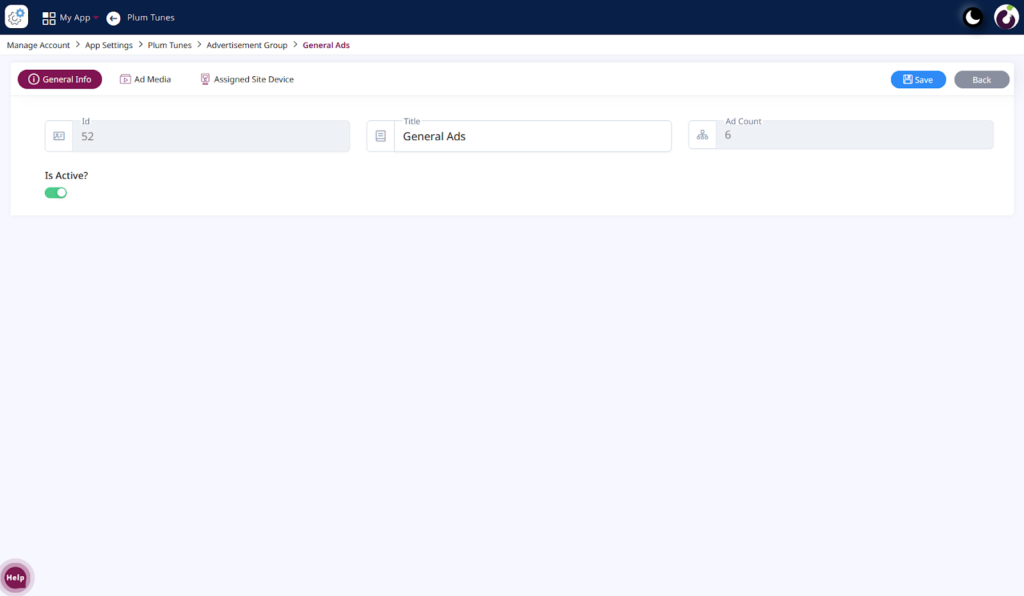
Figure 2.1: Detail Screen of the Advertisement Group Module
Ad Media Tab
The Ad Media tab allows users to assign advertisement media files to a selected advertisement group. Media files must first be uploaded through the Advertisement Media module before they can be added to a group.
Once assigned, users can preview advertisement media directly from the UI to verify quality before playback in restaurants.
Unlike the Tracks or Playlist modules, users can freely remove assigned media from advertisement groups at any time. These features enable restaurants to play promotional advertisements between songs, supporting in-house marketing and customer engagement.
This functionality is illustrated in Figure 2.2.
On this tab, users can view the following information:
- Media ID – Displays the unique identifier of the media file.
- Title – Displays the name of the advertisement media.
- Duration – Displays the playback duration of the media file.
- Size – Displays the file size of the advertisement media.
Action Options
The Action column provides the following configuration options:
- Play – Allows users to preview and verify the quality of the advertisement media before playback in the restaurant.
- Edit – Redirects the user to the Advertisement Media screen for further modifications.
- Delete – Removes the assigned advertisement media from the advertisement group.
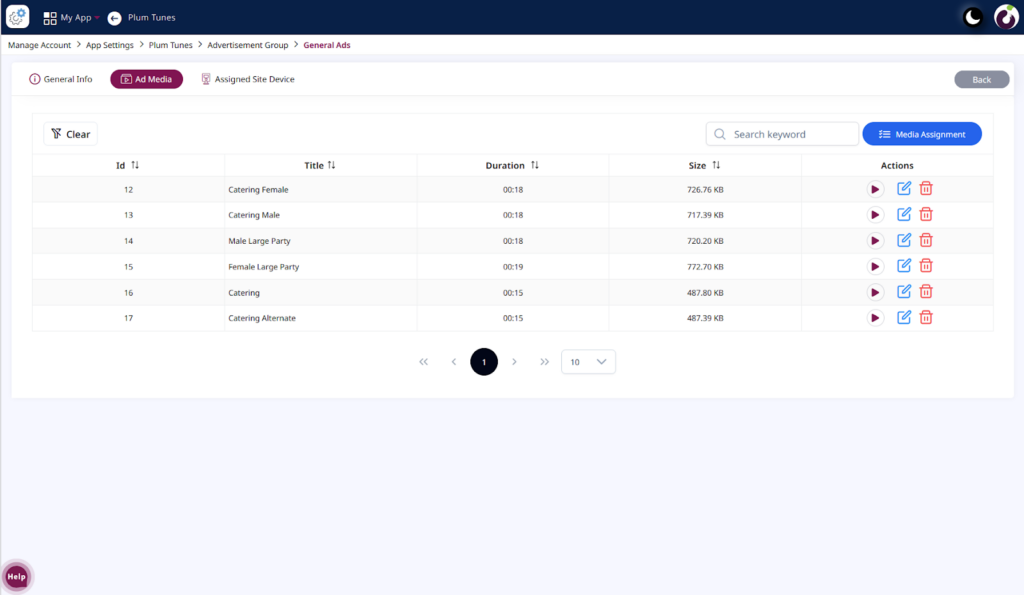
Figure 2.2: Detail screen of the advertisement group> Ad Media
Assigned Site Device Tab
The Assigned Site Device tab displays all devices to which an advertisement group is assigned. An advertisement group can be linked to one or multiple devices depending on the restaurant configuration, as shown in Figure 2.3.
On this tab, users can view the following information:
- Device Name – Displays the assigned device name.
- Device ID – Displays the unique identifier of the device.
- Status – Indicates whether the device is online or offline.
- Last Sync Time – Displays the most recent synchronization time of the device.
- Display Version – Displays the current device display version, which updates whenever new changes are applied.
This information helps users monitor advertisement deployment and synchronization across restaurant devices.
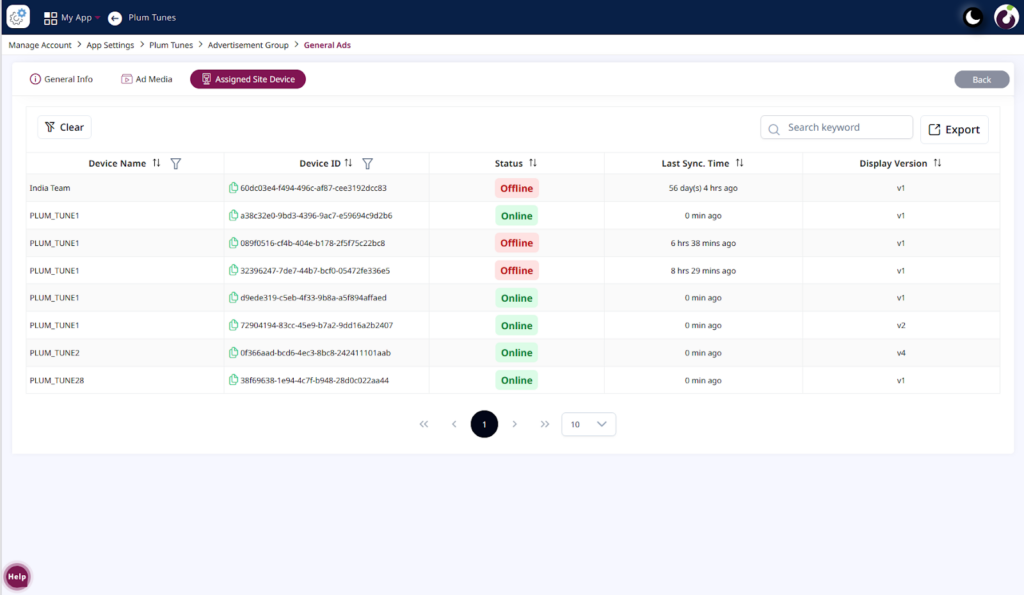
Figure 2.3: Detail screen of the advertisement group> Assigned Site Device