

Overview
The Playlist module contains all playlists that are licensed and added to the Plum Tunes application through the backend system. Similar to the Tracks module, users cannot create playlists directly through the user interface.
Users can only mark an existing playlist as inactive at the global level, which disables the playlist across all store locations.
The summary screen displays the total number of tracks or songs assigned to each playlist, helping users quickly understand playlist composition and usage.
Playlist Information Details
On the Playlist Details screen, users can view the following information:
- Title of the Playlist – Displays the name of the playlist.
- Description – Shows the description or purpose of the playlist.
- Tracks Count – Displays the total number of songs assigned to the playlist.
- Is Active Flag – Allows users to activate or deactivate the playlist globally for all stores.
- Shuffle Mode Enabled – When enabled, songs within the playlist will play in random order on the assigned device.
This information helps users understand the configuration and current settings of the playlist, as shown in Figure 1.3.
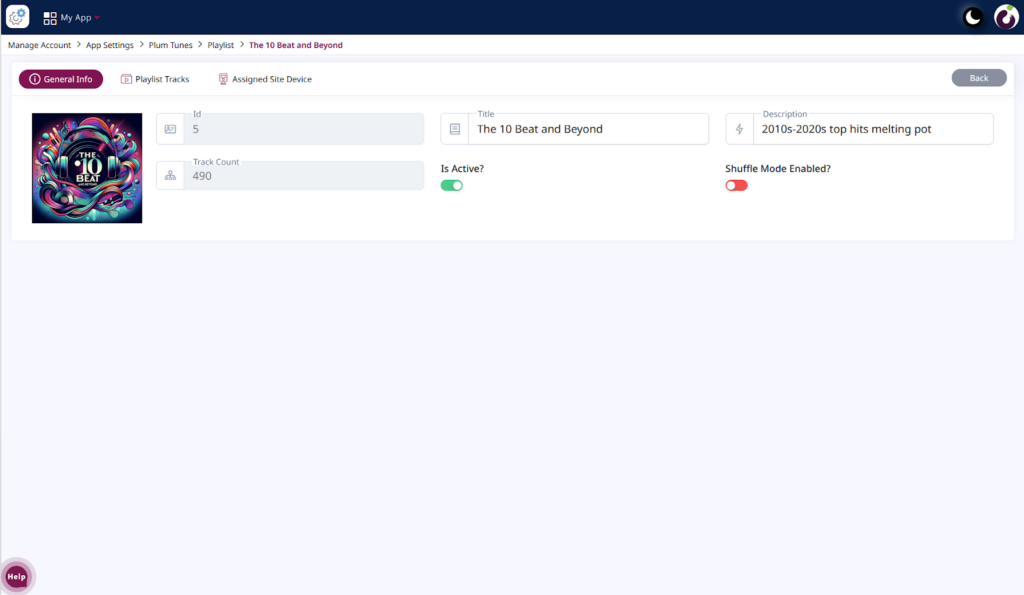
Figure 1.3: Detail Screen of the Playlist Module
Playlist Track Tab
The Playlist Track tab displays all songs included in the selected playlist. Users can manage track availability within the playlist by activating or deactivating individual songs.
Tracks marked as inactive will not play on the assigned device when the playlist is used in a restaurant.
On this tab, users can view the following information:
- Playlist ID – Displays the unique identifier of the playlist.
- Title – Displays the song name.
- Genre – Shows the music category of the track.
- Artist – Displays the artist or performer name.
- Playlist Count – Indicates the number of playlists in which the track is used.
- Duration – Displays the playback length of the song.
- Size – Displays the file size of the audio track.
- Action – Provides options to activate or deactivate tracks within the playlist.
This information helps users understand the track configuration within the playlist, as shown in Figure 1.4.
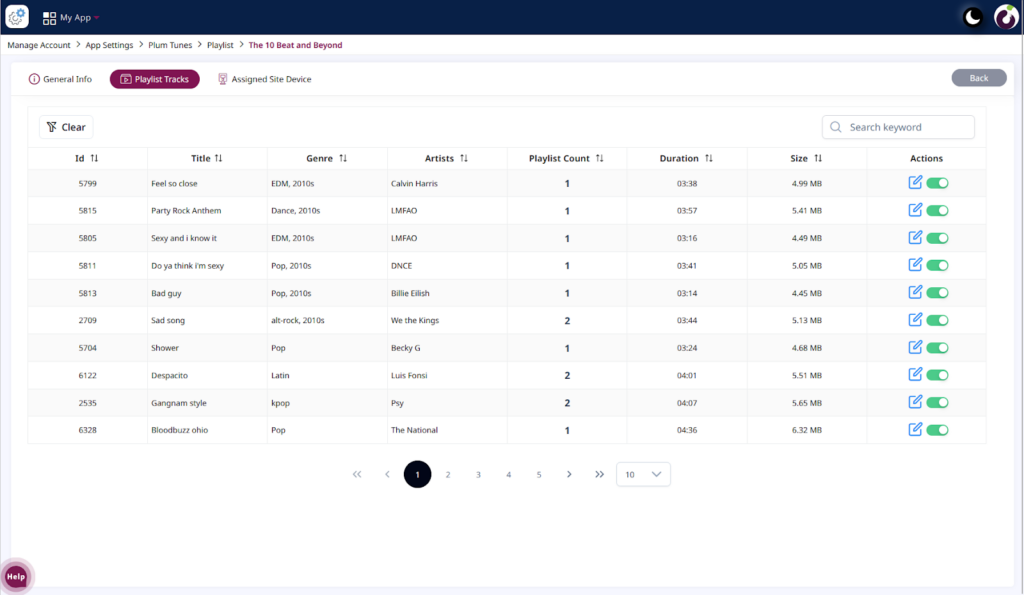
Figure 1.4: Detail Screen of the Playlist Module – Playlist Track Tab
Assigned Site Device Tab
The Assigned Site Device tab displays all devices to which a playlist is assigned. A playlist can be linked to one or multiple devices across different restaurant locations.
This tab also displays the current device status (Online or Offline) along with the latest synchronization details, as shown in Figure 1.5.
On this tab, users can view the following information:
- Device Name – Displays the assigned device name.
- Device ID – Displays the unique identifier of the device.
- Status – Indicates whether the device is online or offline.
- Last Sync Time – Displays the most recent synchronization time of the device.
- Display Version – Displays the version number, which increases whenever new changes are applied to the device.
This information helps users monitor playlist assignment and synchronization status across restaurant devices.
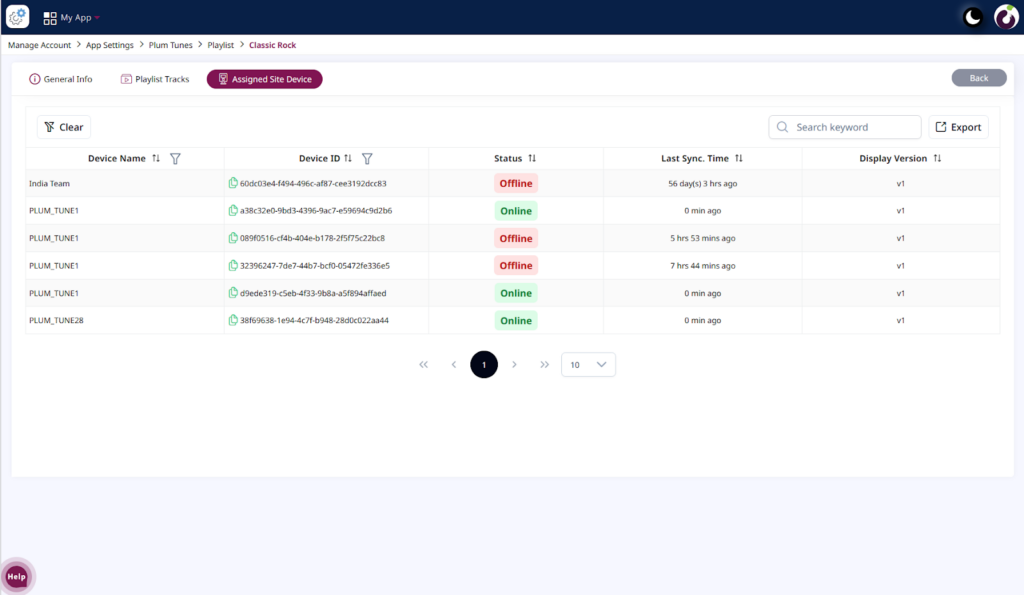
Figure 1.5: Detail screen of the Playlist Module> Assigned Site Device