

These instructions will allow you to view and download your billing statements from Plum POS. Your log in credentials MUST BE Admin with Billing in order to see your statements. Store managers will not have access to the billing. Only Owners and account admins.
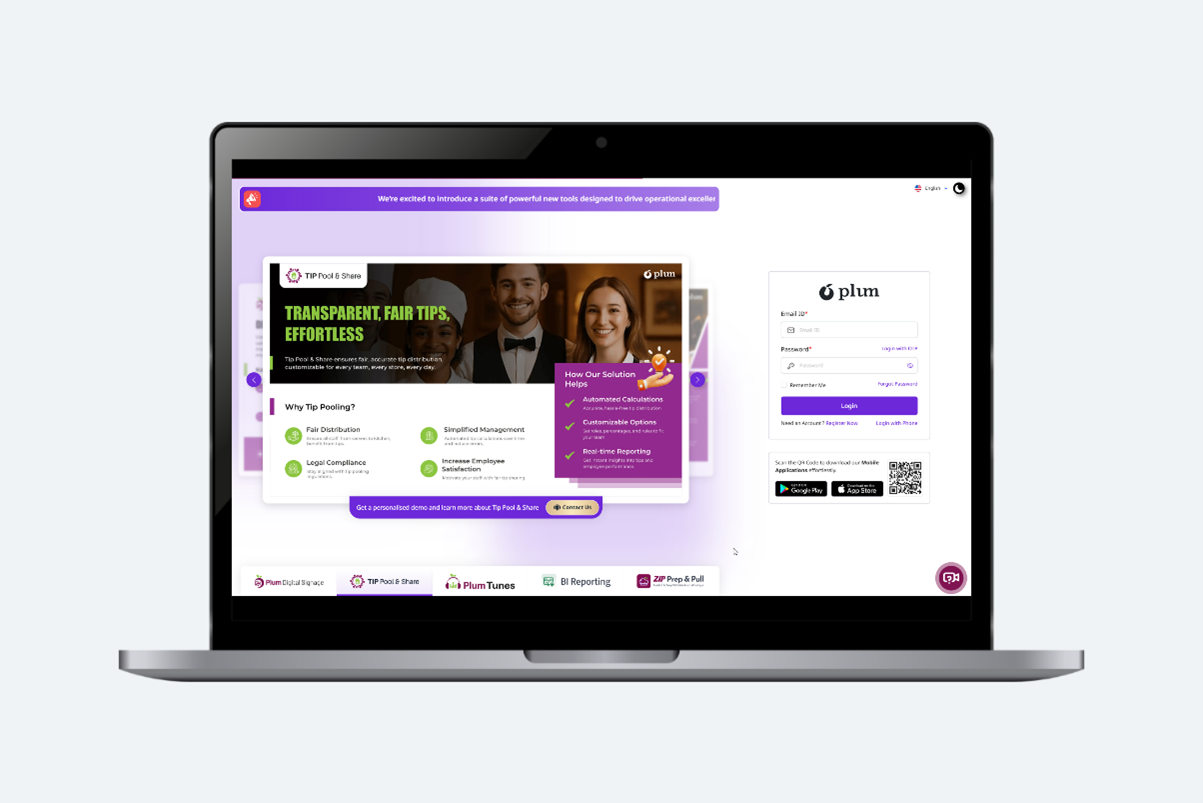
Step 1: Log into https://plumpos.com/ using your Administrative Credentials.
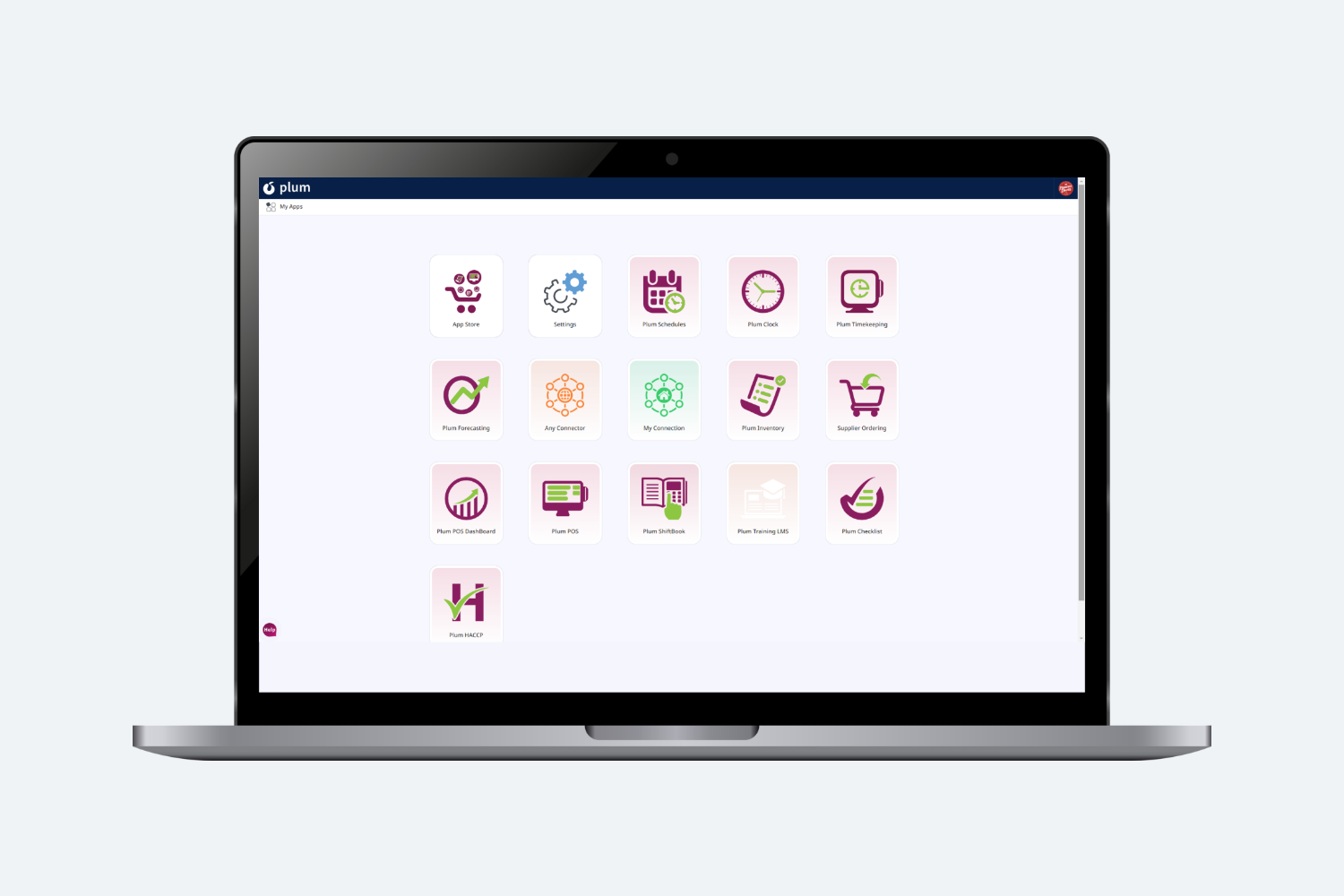
Step 2: On your main Dashboard select Settings
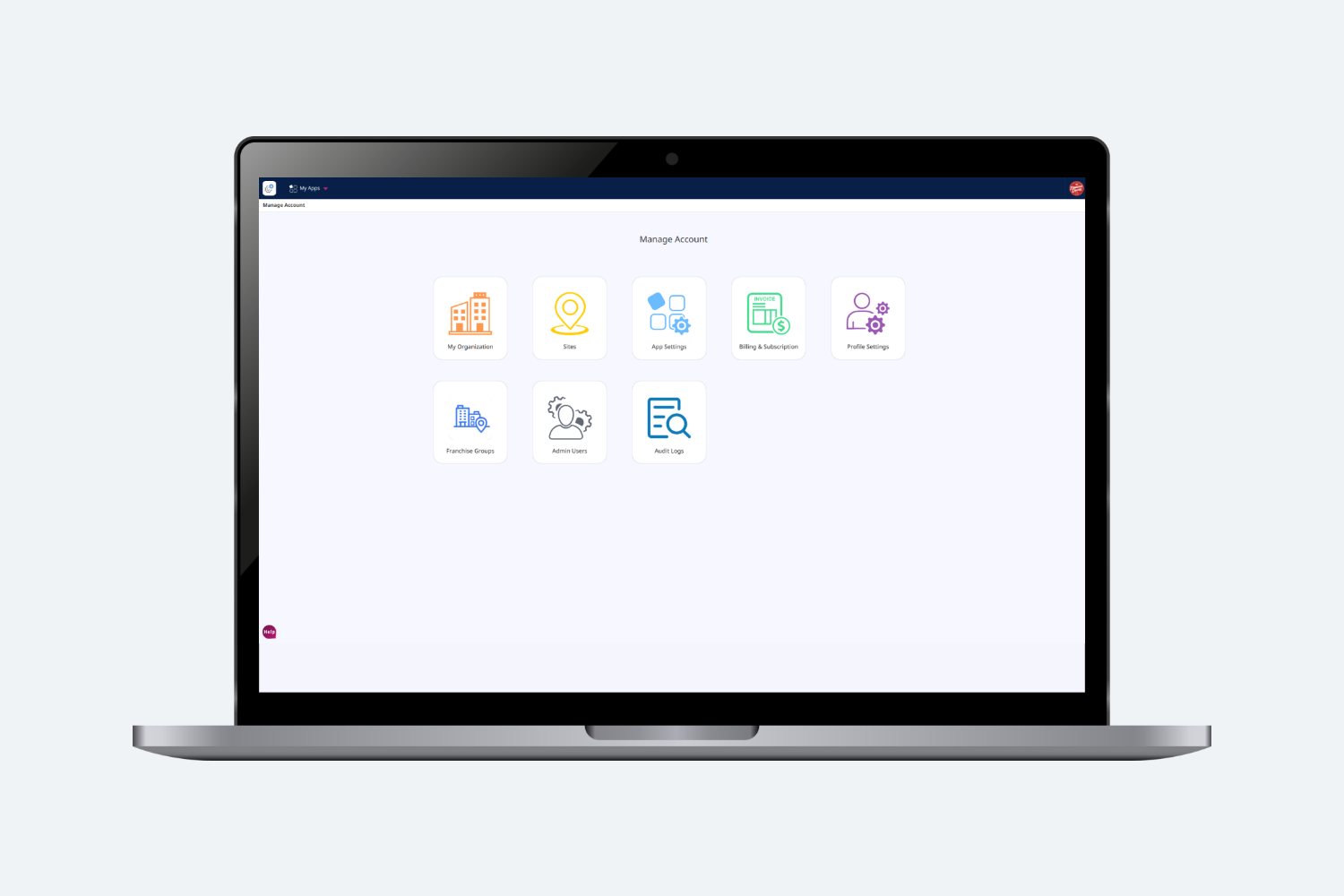
Step 3: On the Manage Account page, select Billing and Subscription
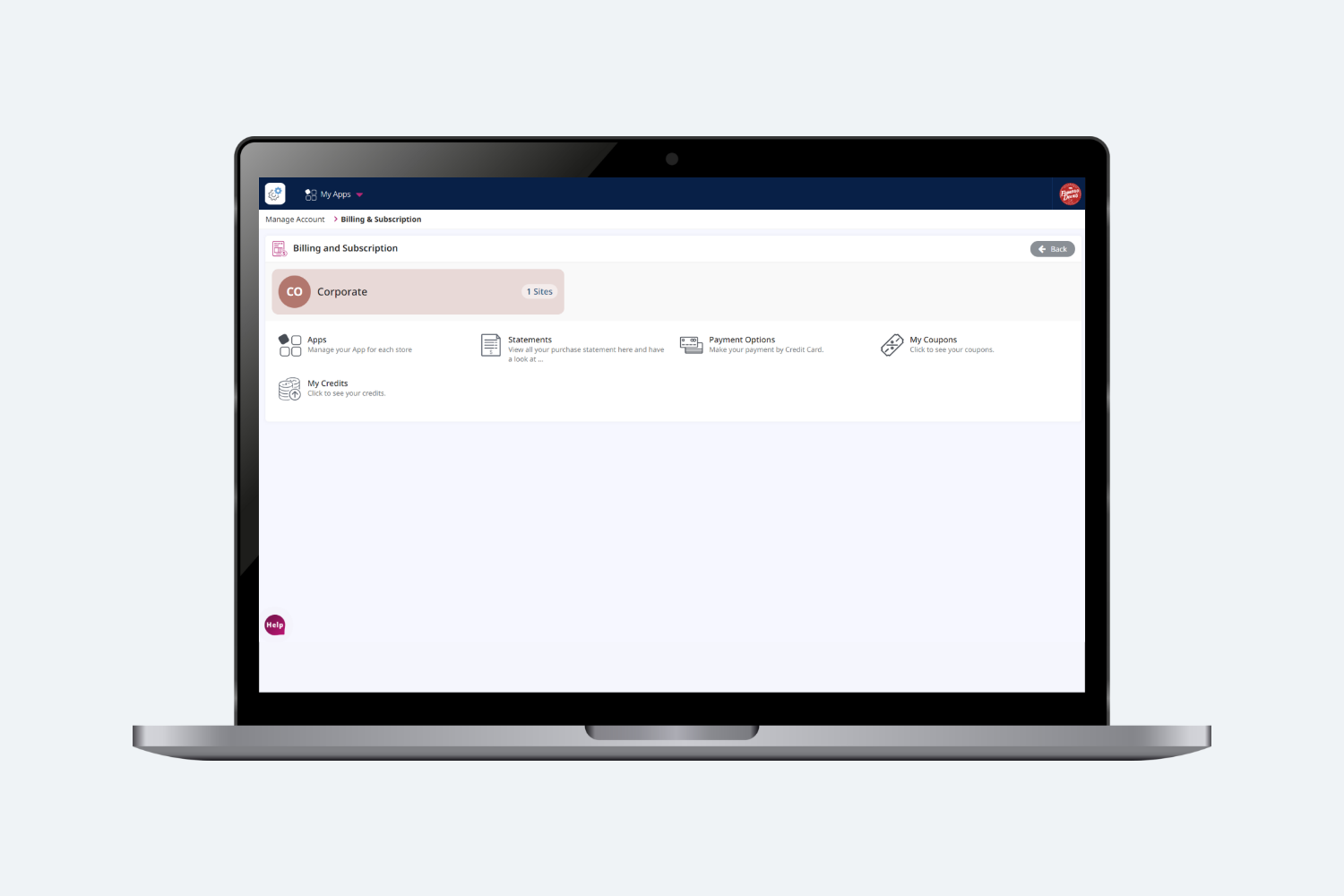
Step 4: From the Billing and Subscription page, select Statements
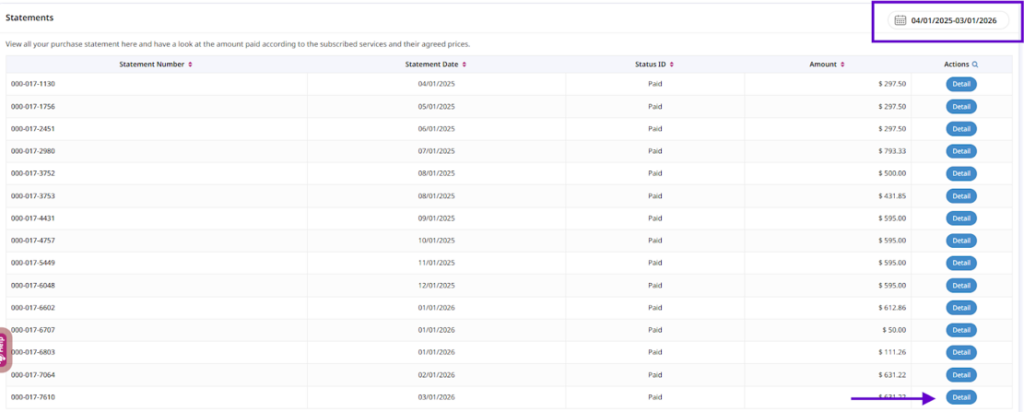
Step 5: On the Statements page, it will show you all statements for the last 12 months by default. You can use the calendar in the upper right corner to go back further. You can then click on the Details button to the right of the statement you wish to view.
Step 6: You can now download your statement by clicking on the Print button in the upper right corner. To go back to the list of statements select the Close button.

Step 7: Repeat steps 5-6 for each statement you need to download.
Thank You!!