

DSR Report Overview
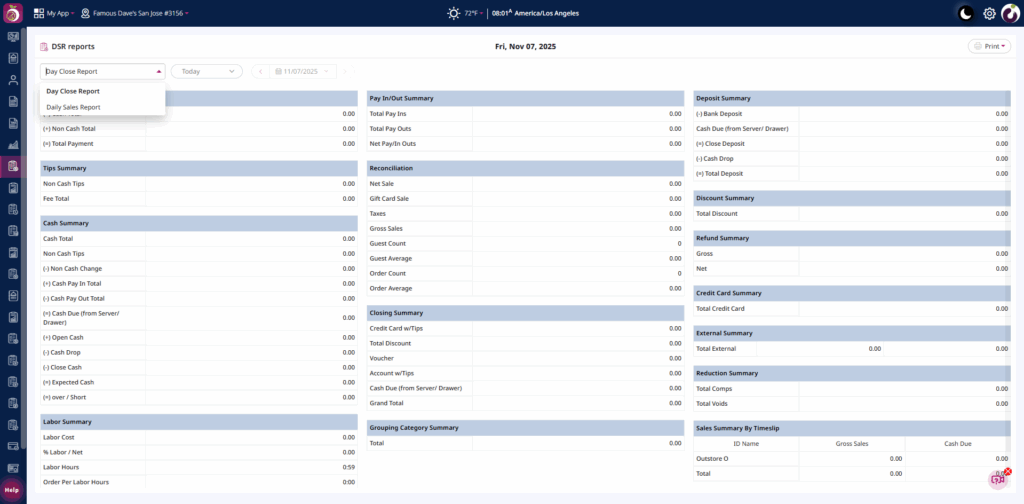
The DSR Report includes two Reports: Day Close Report and Daily Sales Report.
It provides a complete daily summary covering deposits, discounts, refunds, labor Summary, sales by category, payment by modes etc.
This report gives an overview of all key business data for a single day.
Users can simply view the DSR Report instead of checking multiple Plum POS Dashboard Reports to get a full daily summary.
Key Details
Day Close Report
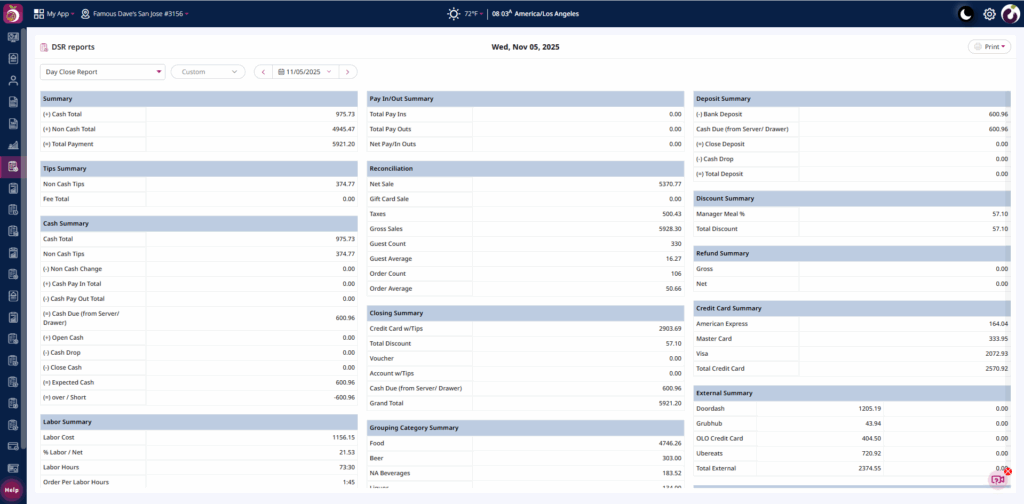
The Day Close Report consist of the following key details:
- Report Location: POS Dashboard > DSR Report > Day Close Report
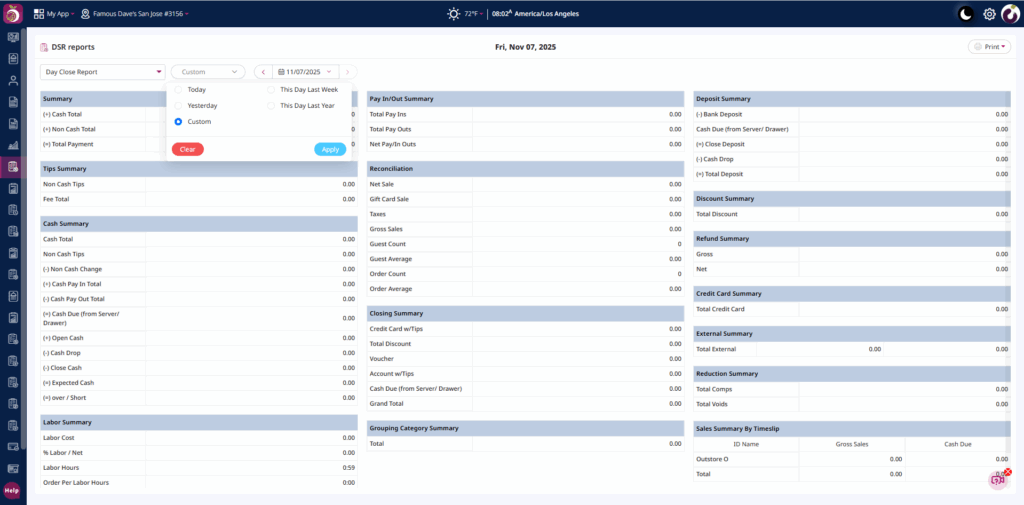
- Date Range Selector: Allows users to choose a specific date to view the report data.
- Summary: Displays Cash Total, Non-Cash Total (payments other than cash, such as Voucher, Gift Card, House Account, Credit Card), and their combined total.
- Tips Summary: Shows the total non-cash tips collected and the total fees for the day.
- Cash Summary:
-
- Cash Total: Total order payments received in cash.
- Non-Cash Tips: Total tips collected through non-cash payment methods.
- Non-Cash Change: Amount of change provided using non-cash methods.
- Cash Pay In Total: Total amount paid in via cash.
- Cash Pay Out Total: Total amount paid out via cash.
- Cash Due (from Server/Drawer): Total cash remaining in the drawer after pay-outs.
Formula: Cash Due = Cash Total – Pay Out - Open Cash: Cash available in the drawer before the first order of the day.
- Cash Drop: Amount of cash withdrawn from the drawer.
- Close Cash: Cash remaining in the drawer at the end of the day.
- Expected Cash: Cash expected to be available in the drawer during closing.
- Over / Short: Displays the difference (overage or shortage) between actual and expected cash.
- Labor Summary: Displays total labor cost, labor percentage (Labor Cost / Net Sales), labor hours (total hours worked), orders per labor hour (Order Count / Labor Hours), and guests per labor hour (Guest Count / Labor Hours).
-
- Pay In/Out Summary: Tracks any cash pay-ins or pay-outs during the day.
- Reconciliation: Provides key metrics like Net Sales, Gift Card Sale, Gross Sales, Taxes, Guest Count, and Order Count.
- Closing Summary: Displays the total payments made during the day, including details such as Credit Card with Tips, Total Discounts, Vouchers, Account with Tips, and Cash Due (from Server/Drawer).
- Discount Summary: Shows all discounts applied (e.g., Senior Discount, Loyalty Discount, BOGO Offers, etc.) along with total discount values.
- Refund Summary: Details all refund transactions processed during the day.
- Credit Card Summary: Summarizes card transactions by type (Visa, MasterCard, AmEx, Discover).
- External Summary: Displays sales from third-party integrations like Doordash, UberEats etc.
- Reduction Summary: Displays the total amount of comps and voids processed.
- Sales Summary By Timeslip: Displays Gross Sales and Cash Due on the basis of employee.
- Print: Use the Download PDF options to export and view the data in the downloaded file.
Daily Sales Report
The Daily Sales Report consists of following informative sections:
-
- Cash Reconciliation: Displays gross sales, discounts, taxes, transaction count, refunds, tips, and delivery charges.
- Sales by Minor Category: Breaks down net sales, Gross Sale, Comps, Voids, Discounts and Taxes by Item Category (e.g., Adult Buffet, Wings, Specialty Pizza).
- Sales by Daypart: Segregates sales between Lunch and Dinner shifts.
- Surcharge Details: Displays information related to any surcharge amounts(Fee) applied during transactions.
- Payment by Mode: Shows payment distribution (e.g., Visa, MasterCard, Cash, Doordash, UberEats etc).
- Sales by Type/Revenue Center: Highlights Sales on the basis of different Revenue Centers such as Dine IN, ToGo, OLO Doordash Pickup, OLO Pickup etc.
- Bank Deposit: Displays the employee name and the amount deposited for the day.
- Paid In Outs: Shows payment reasons along with the number of pay-ins/pay-outs and corresponding amounts ($).
- Discounts: Lists all discount names with the number of times applied and the total discount amount.
- Timeslip(s) Detail: Displays detailed timeslip information, including Employee Name, Net Sales, Open Cash, Cash Sales, Pay In, Pay Out, Expected Closing Cash, Cash Drop, Cash Over/Short, Status, Open Time, and Close Time.
- Cash Drop(s) Detail: Displays details of each cash drop, including time of creation, amount, and modification history.
- Voids / Comps / House Detail: Displays Names along with their quantities and amounts related to voids, comps, and house transactions.
- Print: Use the Download PDF or Download CSV options to export and view the Report data in the downloaded file.
Steps to View the Reports
For Day Close Report
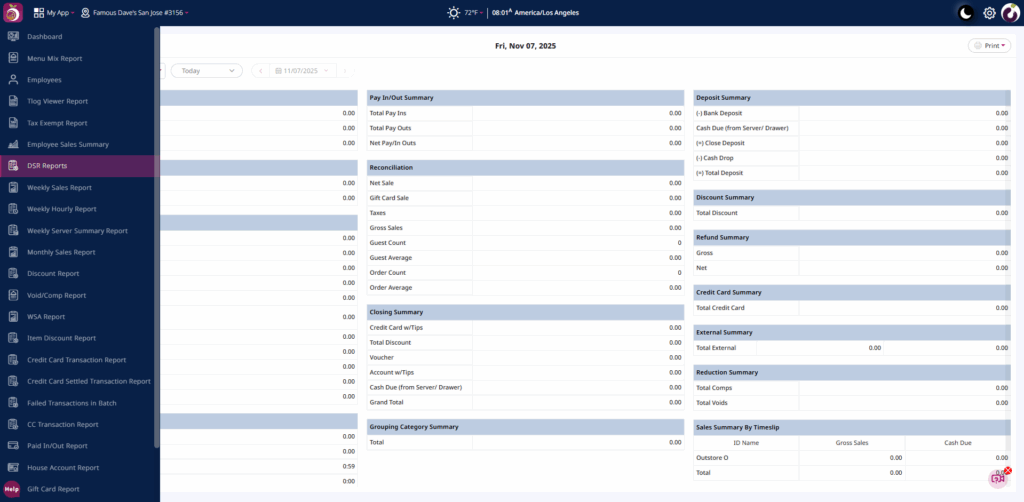
Step 1: Navigate to DSR Report from the left navigation panel of the POS Dashboard.
Step 2: From the dropdown, select Day Close Report.
Step 3: Choose the desired date.
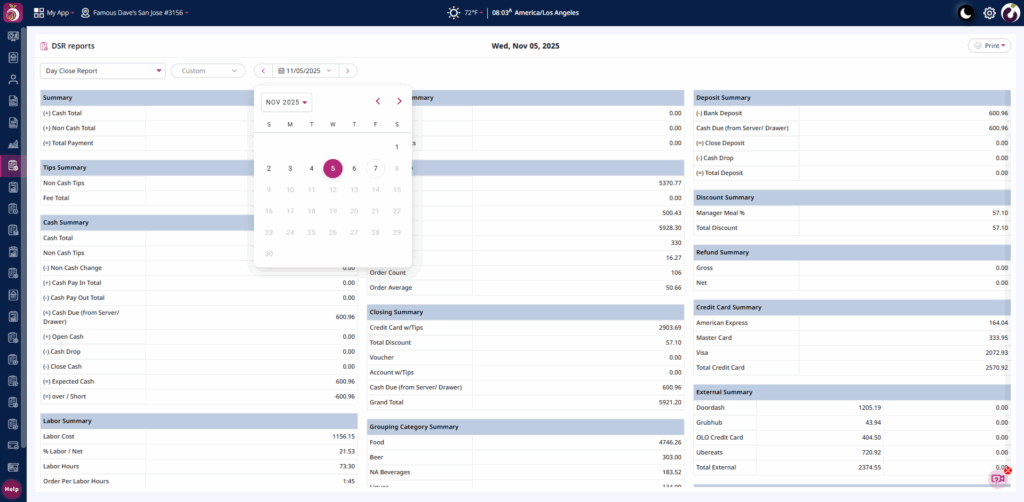
Step 4: Review all key metrics including Summary, Reconciliation, Discount Summary, and Closing Summary for the selected day.
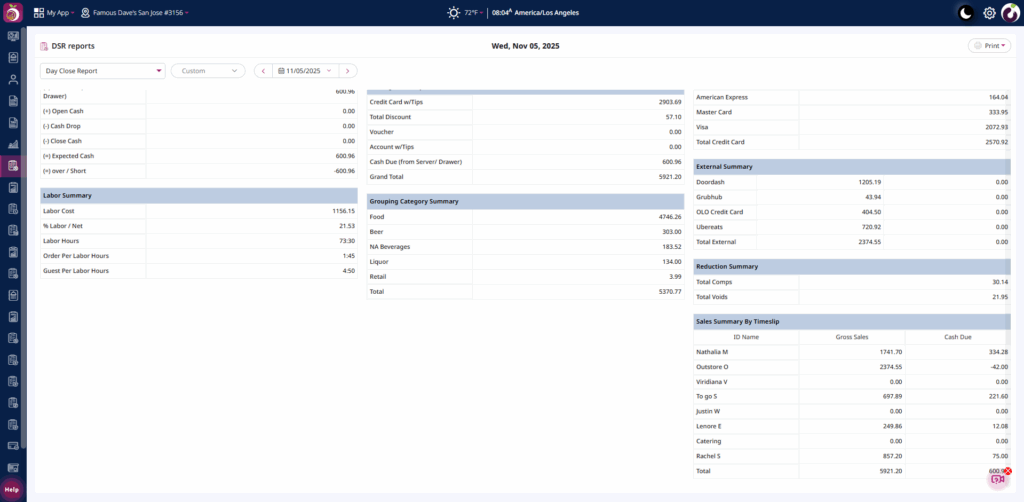
Step 5: Use the Print option on the top-right to export the data in PDF format.
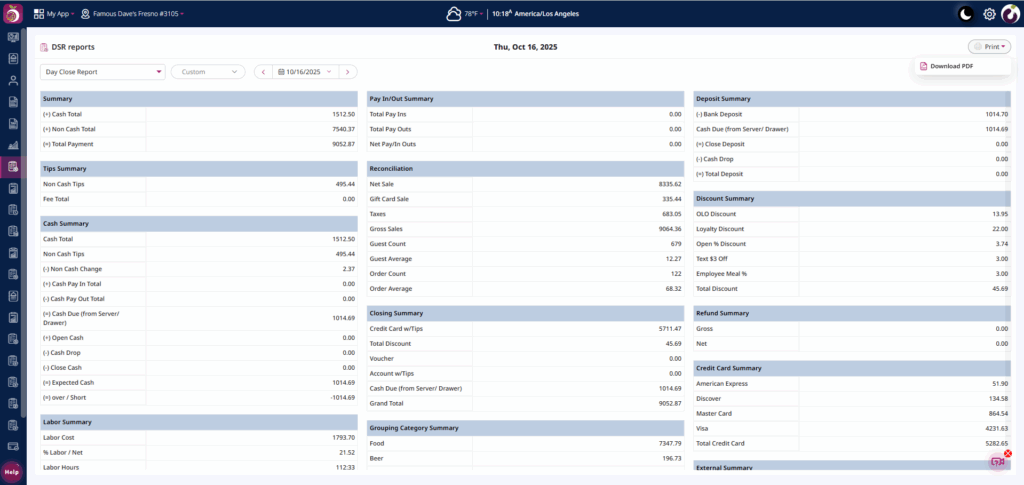
For Daily Sales Report
Step 1: From the dropdown, choose Daily Sales Report.
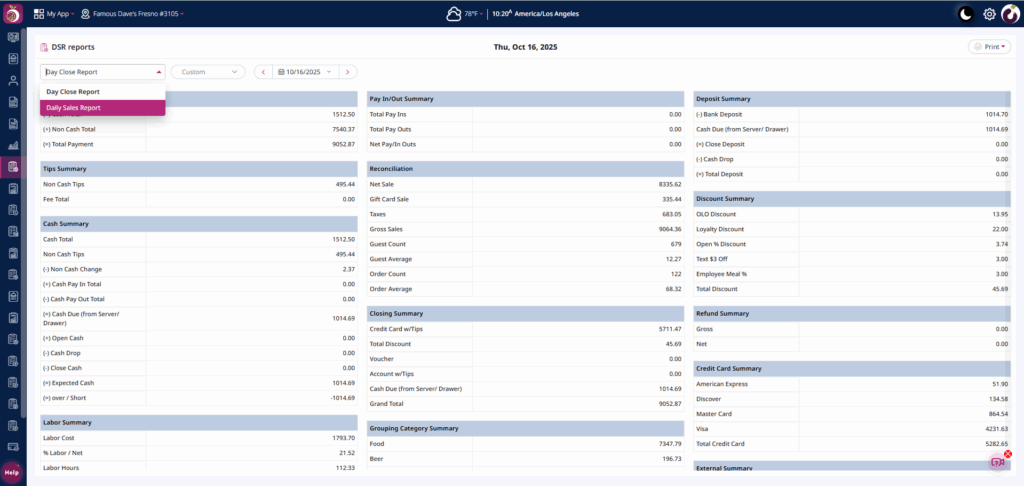
Step 2: Select the date using the calendar filter.